Launch Test #
URL: /launch
A single-form view for starting a test session from the browser
instead of the command line. Fill in the form, click Start Test, and
the page redirects to the live monitor at /live/{run_id}.
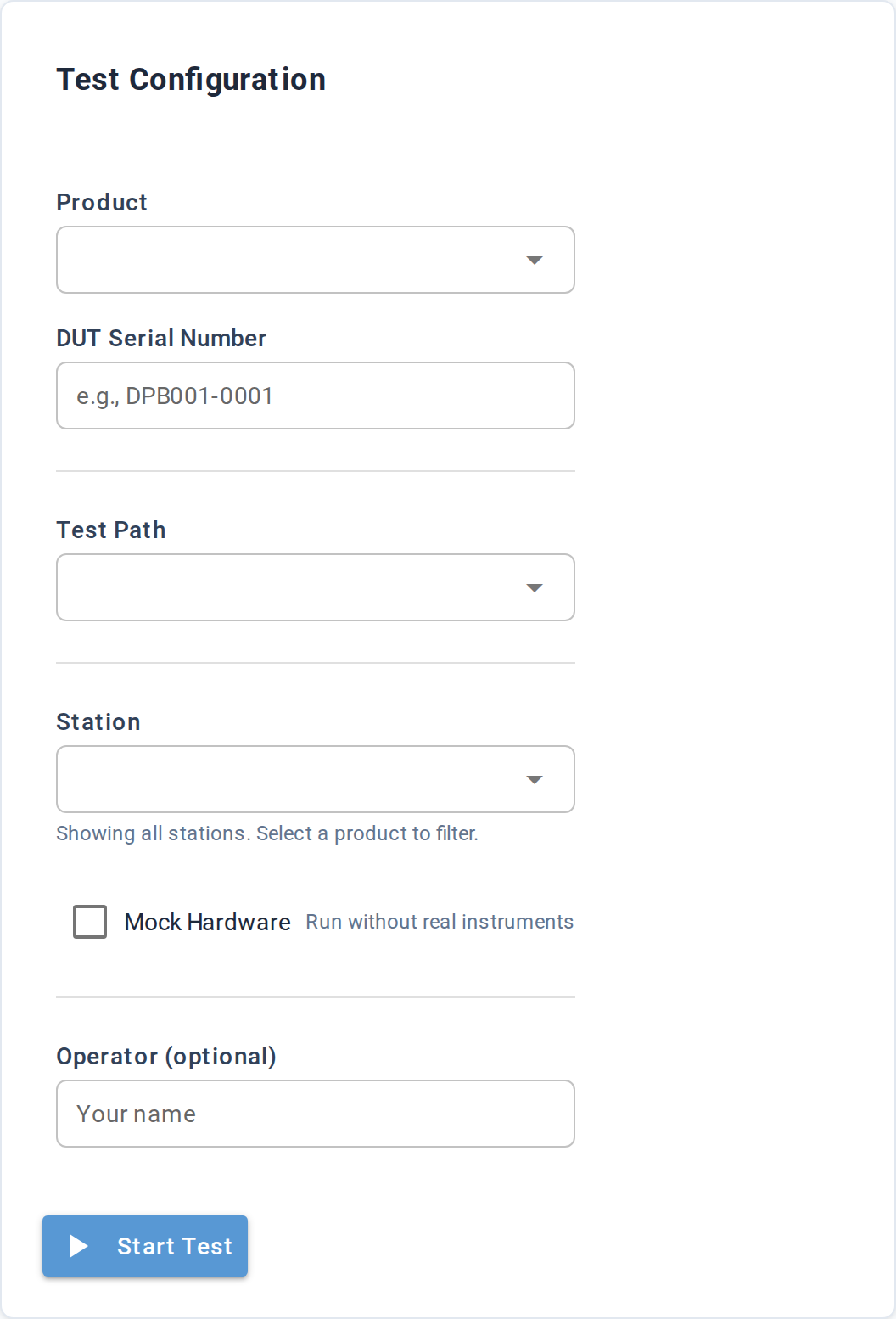
The form takes a Part, UUT Serial, Test Path, Station, an optional Profile, optional Operator name, and a Mock Hardware checkbox.
Form #
| Field | Purpose | Required |
|---|---|---|
| Part | The UUT part / part the test targets. Dropdown is populated from the project's parts/ directory. Selecting a part filters the Station dropdown to compatible stations. | optional |
| UUT Serial Number | The serial number stamped on the unit you're about to test (e.g. DPB001-0001). Free-text. | yes |
| Test Path | Which test directory to run. Dropdown is populated from the test directories Litmus discovered in the project. | yes |
| Station | Which station to run on. Dropdown is filtered by the selected Part when one is selected; otherwise shows every station. A hint line below the dropdown tells you what's filtered ("3 compatible station(s)" / "Showing all stations. Select a part to filter." / "No compatible stations - consider mock mode"). | yes |
| Profile | Which test profile to apply for the session (its limits, markers, and fixtures). Dropdown lists the project's discovered profiles; defaults to (none). | optional |
| Mock Hardware | When checked, runs against mock-instrument stand-ins instead of real hardware. Useful for dry runs and CI. | optional |
| Operator | Your name. Stamped on the run record for traceability. | optional |
| Start Test button | Submits the form. Validates required fields, starts the run via the API, then redirects to /live/{run_id}. |
If UUT Serial or Station is empty, the form pops "Please fill in required fields". If Test Path is empty, the form pops "Select a test directory". Either way the form stays on the page so you can fix the input and retry.
Pre-fill via URL #
The Dashboard's station cards link here with the station pre-filled
(/launch?station=<id>). The Part field accepts the same query
parameter (part=<id>), and mock=1 pre-checks the Mock Hardware
box. Useful for bookmarking a specific test setup.
| URL parameter | Pre-fills |
|---|---|
part | The Part dropdown |
station | The Station dropdown |
test_profile | The Profile dropdown |
mock | Set to 1 to pre-check Mock Hardware |
After Start Test #
Successful submit redirects to /live/{run_id} — the live monitor
view for the new session. From there, the run progresses from start,
through each step and its measurements, to completion — at which point
the Results detail page becomes the canonical view.
A failure (network error, missing station, etc.) pops an error toast and stays on the form so you can fix the input and retry.
Underlying data #
Stations come from the same scan the Dashboard uses. Parts come from
the project's parts/ directory. Tests come from the project's
tests/ directory.
The "compatible stations" filter behind the Part dropdown uses capability matching: a station is compatible with a part when its instruments cover every required characteristic of the part.
Common tasks #
- Run a quick smoke test on this bench — select Station, leave Part blank, pick a Test Path, check Mock Hardware, Start.
- Production launch — select Part first (filters stations), pick a compatible Station, enter UUT Serial, leave Mock unchecked, enter your name as Operator, Start.
See also #
- Dashboard — the start screen that links here
- Concepts → Capabilities — how the station-compatibility filter is computed